User guide tracker (admin)
PPMS TRACKER USER GUIDE
Section titled “PPMS TRACKER USER GUIDE”Admin mode
Section titled “Admin mode”If you need to enter the system as an admin, Please enter the backup code.
1. Click on the link ***use backup code to unlock***.
2. Enter backup code in the text box ( Please note the backup code is the same phrase which use to login into 'cmmadmin' account. If you have any issues, please send an email to r.ali1@uq.edu.au)
3. click on **'login'** button. Now you are in the system and can use it as an admin.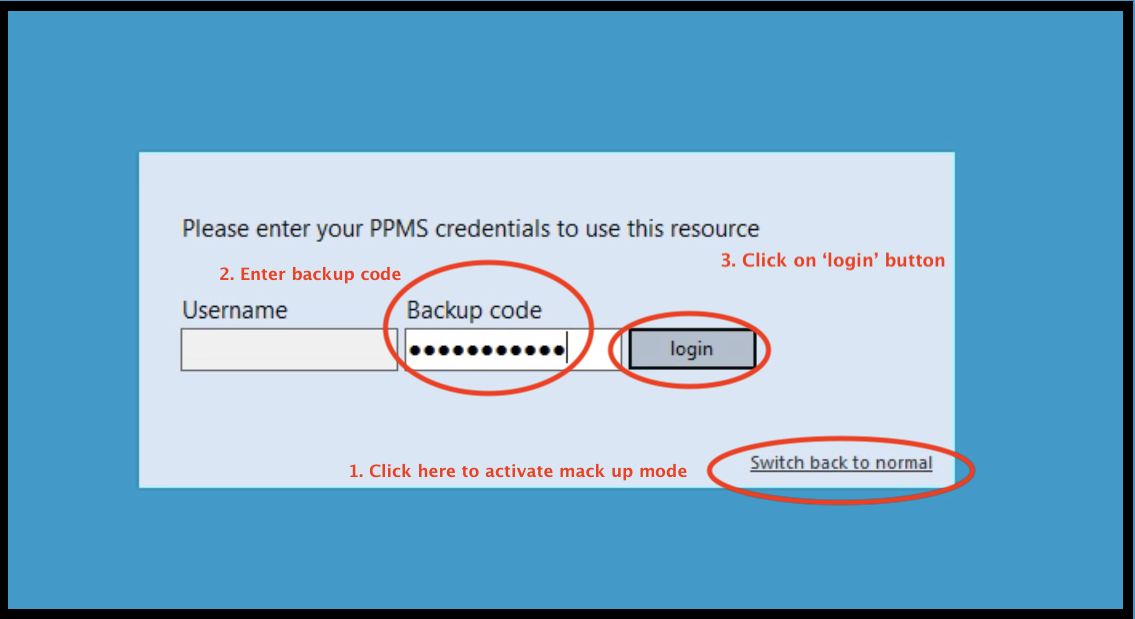
User mode
Section titled “User mode”Step 1: User registration in PPMS
Section titled “Step 1: User registration in PPMS”Prerequisite
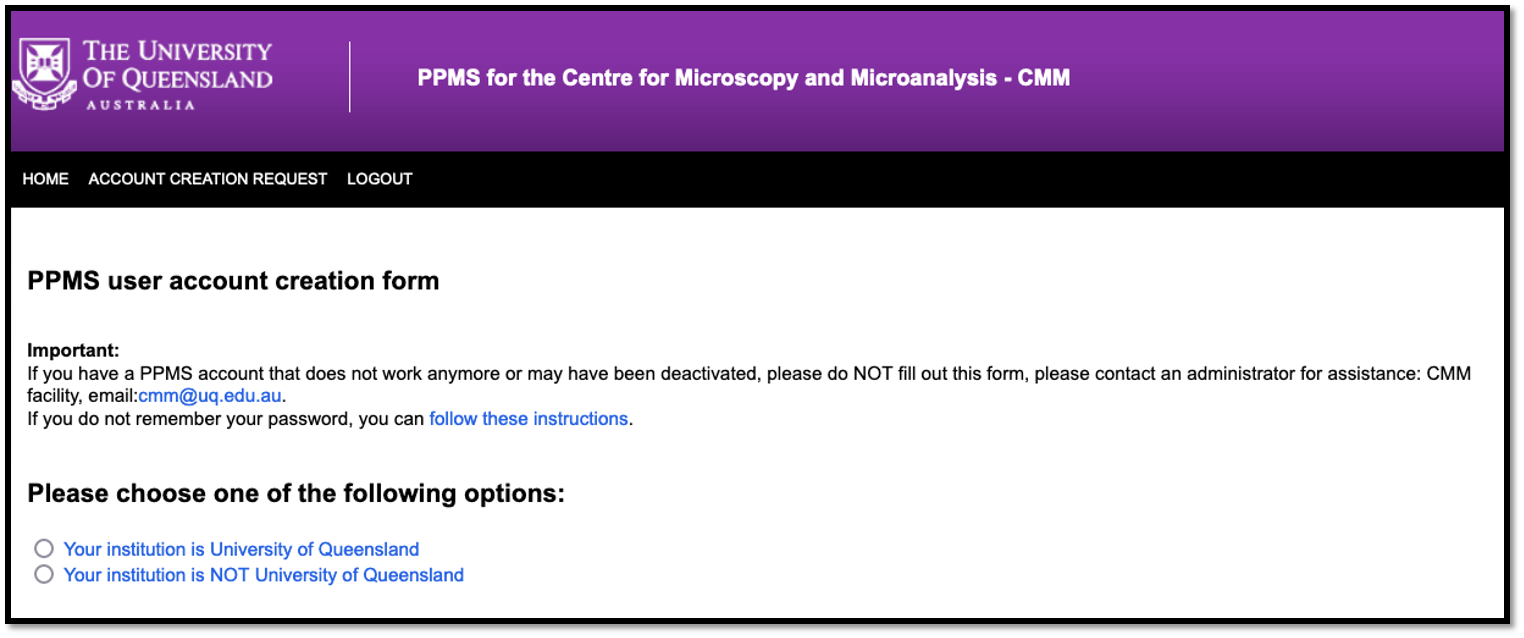
Section titled “Prerequisite”Please note that it is compulsory to register yourself as a user in PPMS instrument booking system.
-
Please make sure you are registered on PPMS instrument booking system.
-
If you are already a PPMS user, please go to Step 2.
-
If you are not a PPMS user, please complete user registration form https://au.ppms.info/uq-cmm/areq/?pf=2
Step 2: Book your session in PPMS
Section titled “Step 2: Book your session in PPMS”Prerequisite
Section titled “Prerequisite”Please note that it is compulsory to book your session in PPMS instrument booking system.
- Once your PPMS account is approved by CMM staff. Please login to PPMS using your UQ username and password.
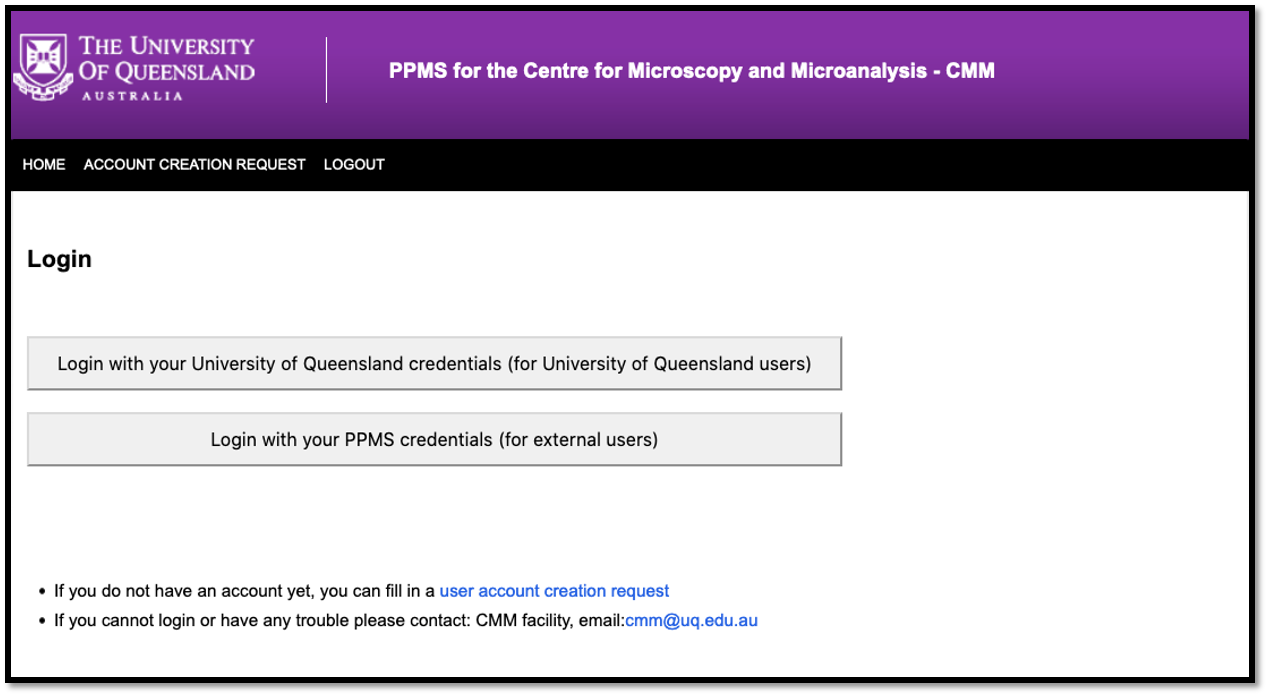
- On your home page please click on ‘Book’ on top bar.
- Please select the instrument from the list of instruments.
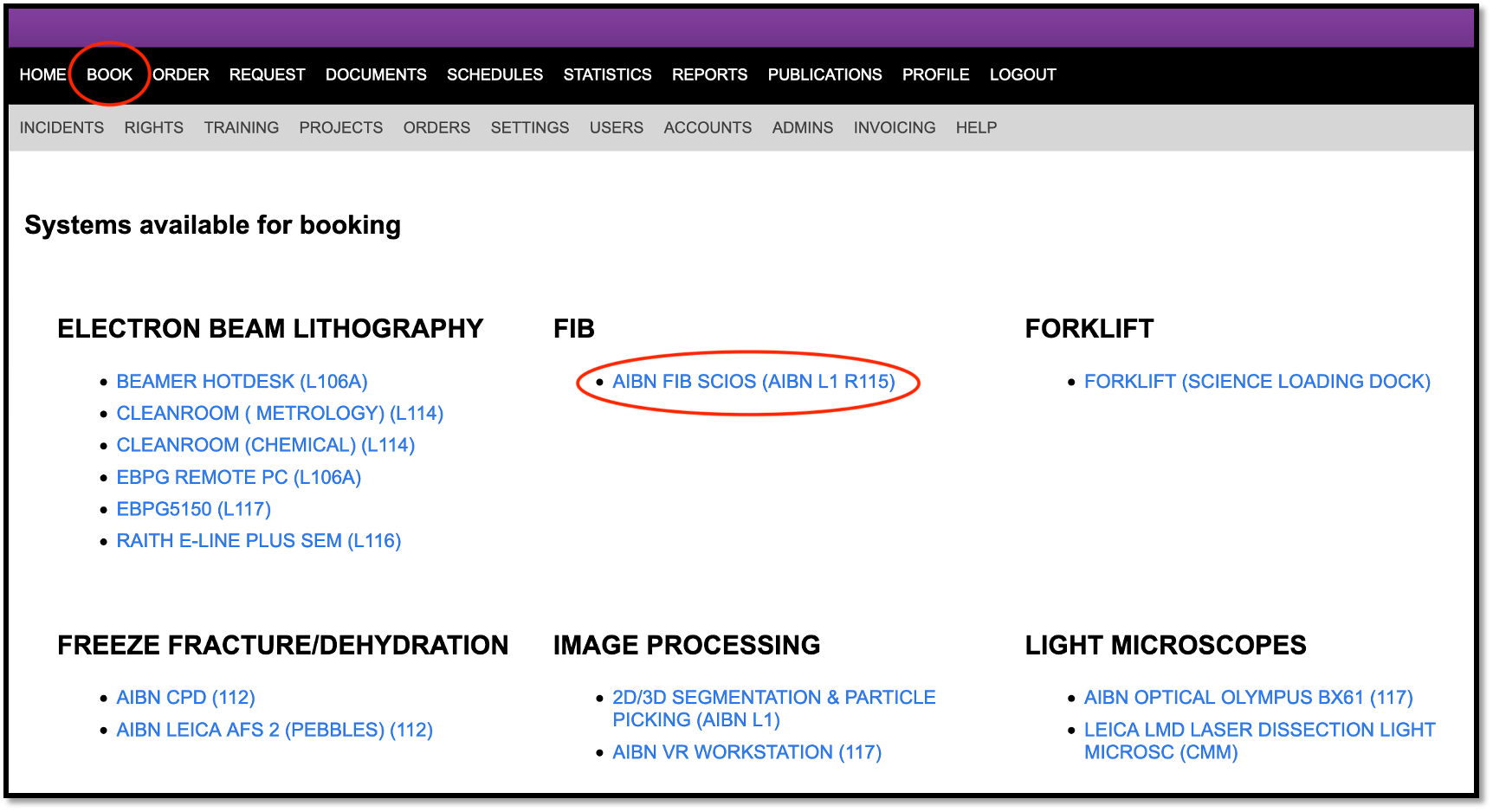
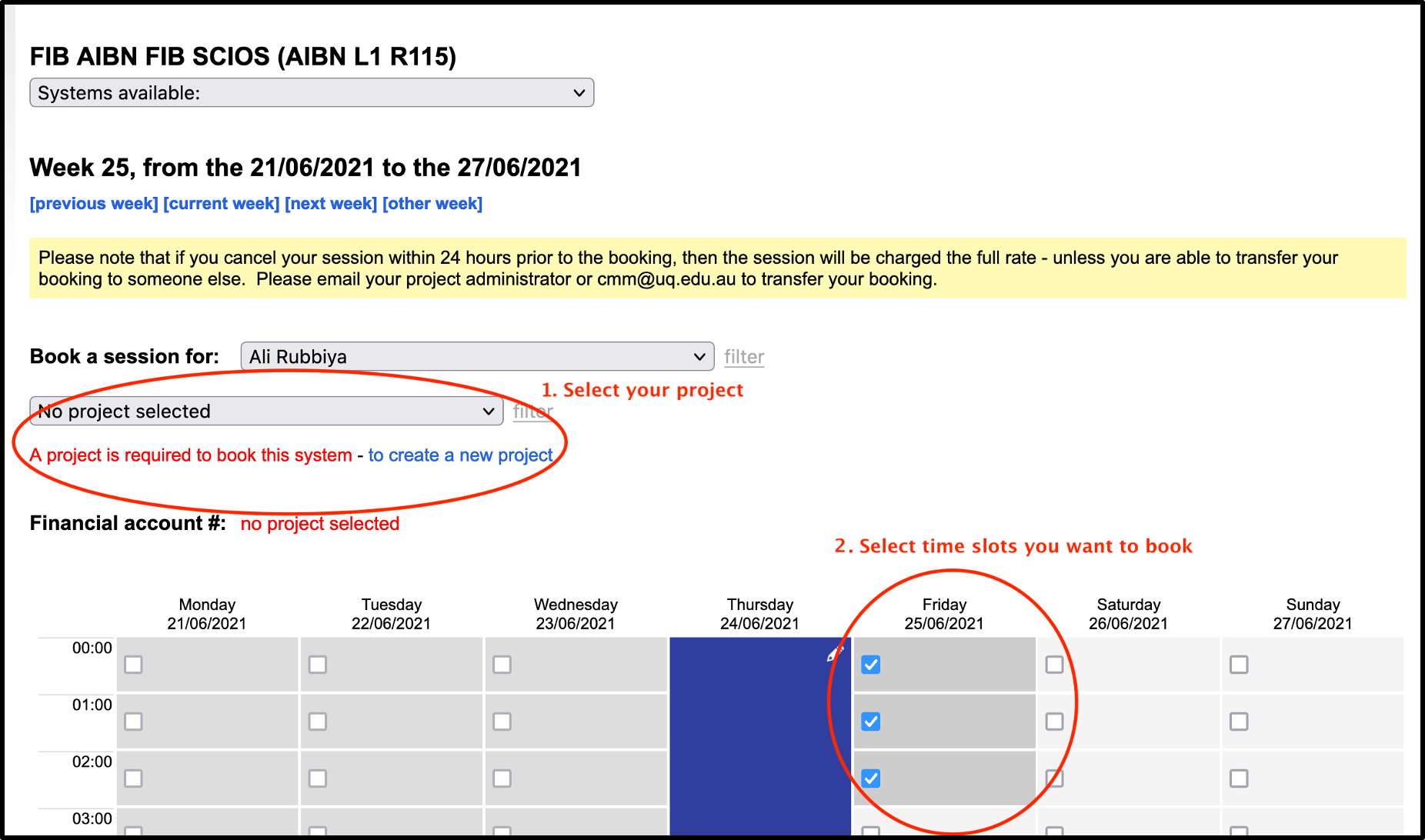
- On the booking calendar, please select Project, time slots to be booked and click the button Book the selected sessions.

Step 3: Access Instrument
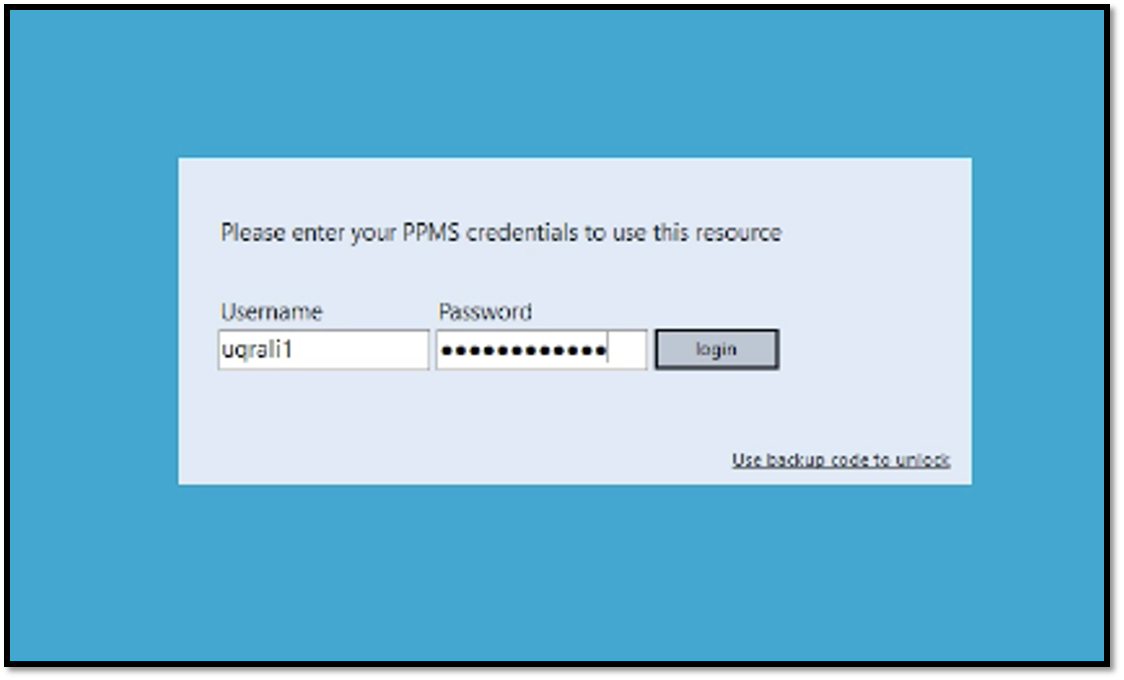
Section titled “Step 3: Access Instrument”- On the Instrument computer, on login screen please enter your UQ username and password.
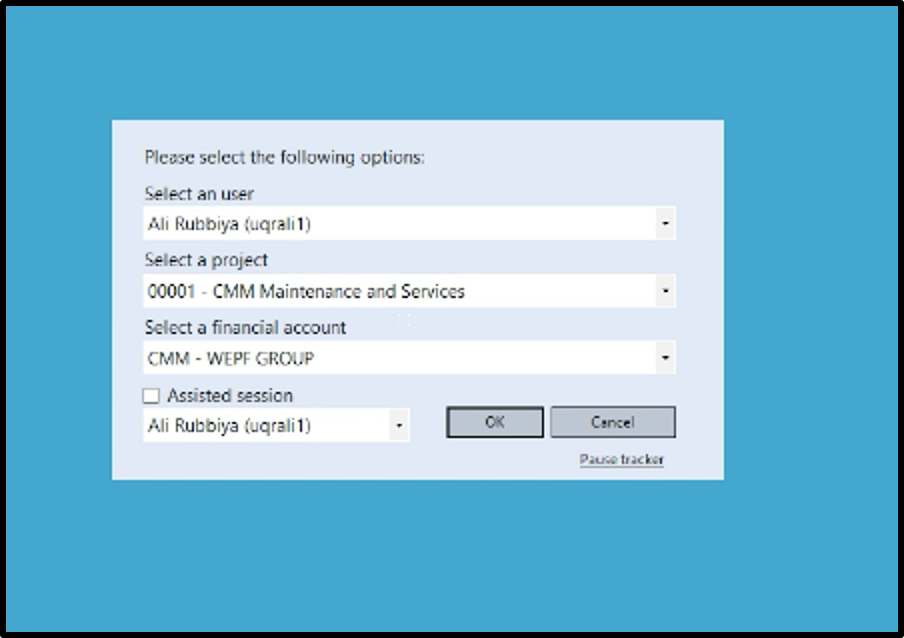
- Please select project. Make sure you select the right project.
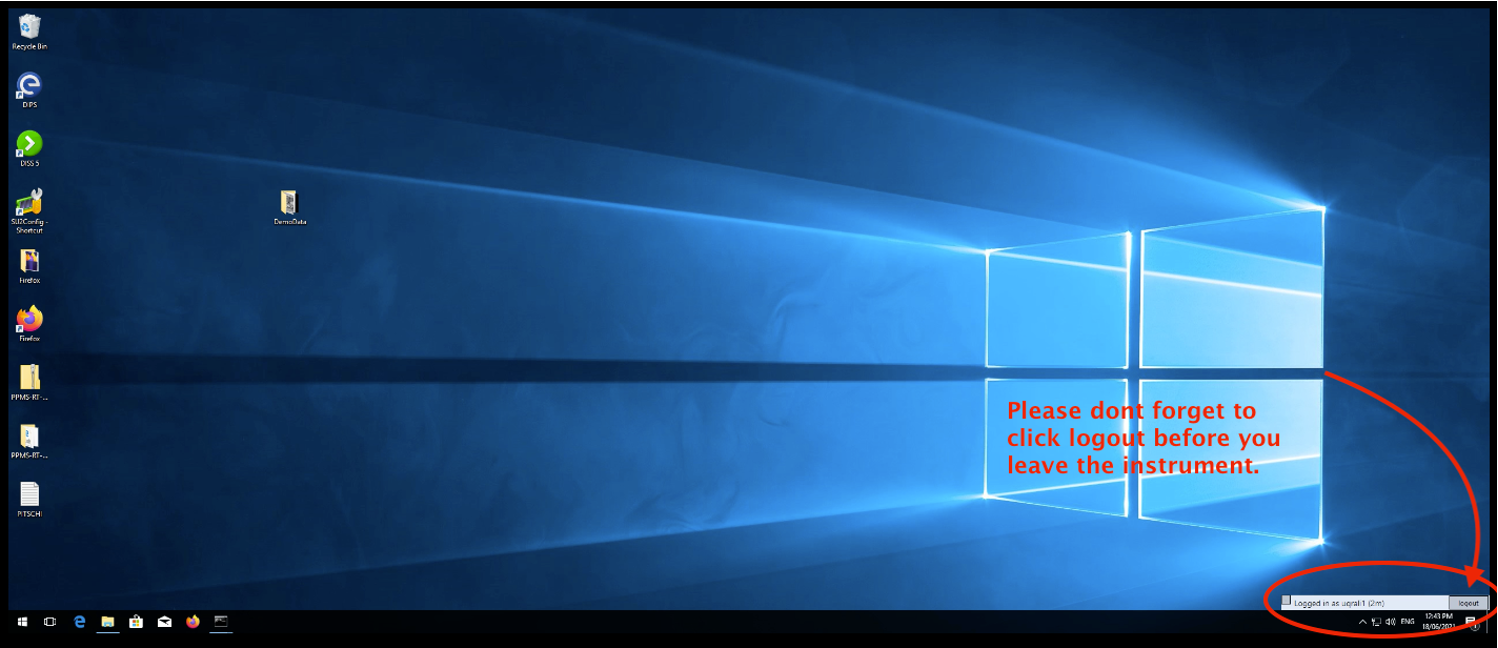
Step 4: Logout of PPMS Tracker.
Section titled “Step 4: Logout of PPMS Tracker.”Now you can use the system. Once you finish the work please log out of the system.